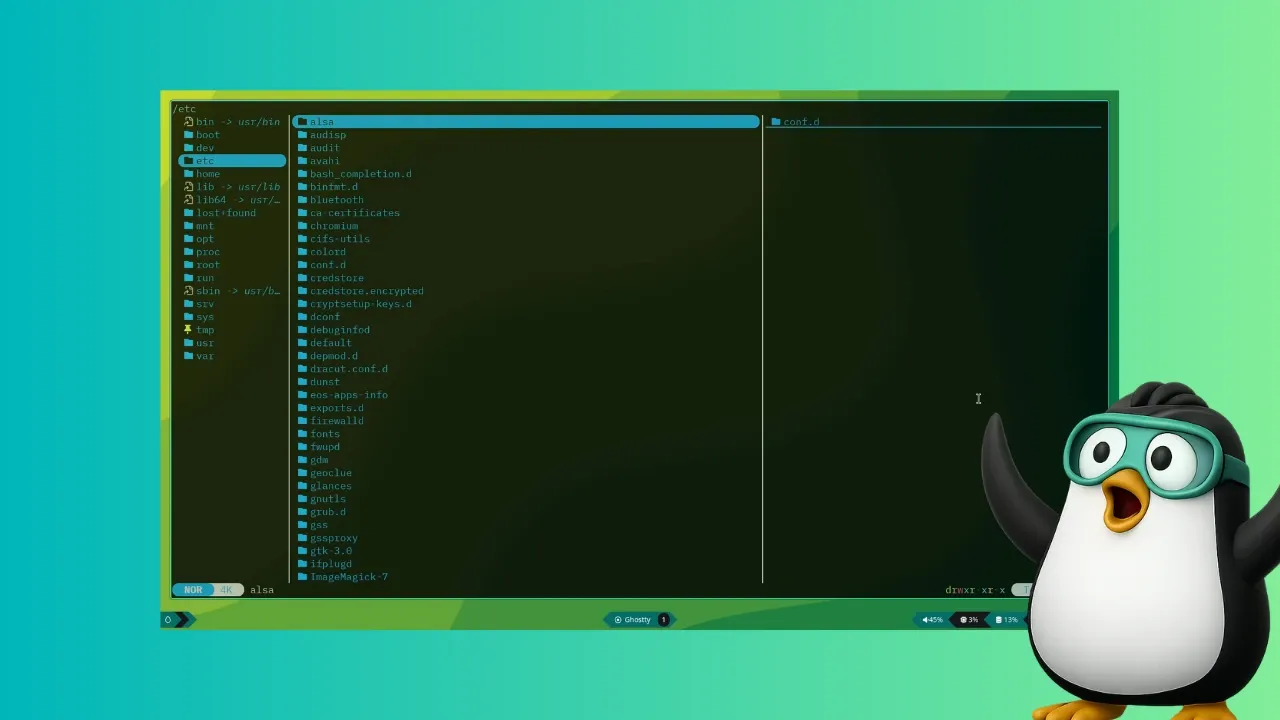
There are two kinds of Linux users. Those who live in the comfort of GUI and those who live in the adventurous world of terminal.
I am neither of the two.
I prefer the comfort of GUI and I jump into the terminal when required or when I am in the mood to explore something.
This article is the result of one such adventure where I tried a file manager in the terminal.
Yes! A file explorer in the terminal. If you are surprised, let me tell you that there are several terminal-based file managers available since forever.
Instead of the usual ls and cd commands combination, you browse and intercat the files in a slightly more comfortable way with these tools.
I explored one such file explorer called Yazi and it impressed me enough to cover it here on It's FOSS.
I even made a video on it. You may watch the video or read the article, whichever you prefer.
Subscribe to It's FOSS YouTube ChannelWhat is Yazi, again?
Yazi is a terminal-based file manager packed with features. The first time I used it, I honestly wondered why I hadn’t started earlier. For those curious, it’s written in Rust. I am not sure if you'll love it or hate it for that 😉
0:00 /0:32 1×Yazi File Manager
Here’s what stands out in Yazi:
- Full asynchronous support; CPU tasks are spread across multiple threads
- Built-in support for multiple image protocols
- Built-in code highlighting and image encoding
- Scrollable previews
- Powerful file search and manipulation tools
I'll show my experience with Yazi and its features that I explored. Honestly, if you spend plenty of time in the terminal, you won't even feel the need of opening the graphical file manager like Nautilus or Nemo.
But first, let's see how to install it first.
Installing Yazi on Linux
Yazi is available in the official repositories of Arch Linux, Void Linux, OpenSUSE Tumbleweed, and more.
On Arch Linux, install it along with dependencies and tools that will make the full use of Yazi:
sudo pacman -S yazi ffmpeg 7zip jq poppler fd ripgrep fzf zoxide resvg imagemagickUbuntu users can install the Snap version:
sudo snap install yazi --classicIf your distribution doesn’t provide Yazi in its repositories, use the official binary release.
Don't forget to install additional packages that give Yazi all those powerful features.
sudo apt install ffmpeg 7zip jq poppler-utils fd-find ripgrep fzf zoxide imagemagickAfter that, you can download the official binary, give it execute permission, and run it.
Download Yazi🚧Since this is a terminal tool, you should be comfortable using the terminal and commands. I won't explain each step or command in detail; I presume you would already know these things.Post install setup
After installing Yazi, add a small wrapper script so you can cd into the directory you were browsing when quitting Yazi.
Open your ~/.bashrc or ~/.zshrc and add:
function y() { local tmp="$(mktemp -t "yazi-cwd.XXXXXX")" cwd command yazi "$@" --cwd-file="$tmp" IFS= read -r -d '' cwd < "$tmp" [ "$cwd" != "$PWD" ] && [ -d "$cwd" ] && builtin cd -- "$cwd" rm -f -- "$tmp" }Save the file and restart your shell. Now you can launch Yazi just by typing y.
Features that make Yazi cool
Let’s look at the features that make Yazi stand out.
The cd magic
In the previous section, we added a wrapper function so you can open Yazi with y. But here’s the interesting part.
When you’re inside Yazi, navigate to any directory and press q. You’ll quit Yazi and automatically cd into that directory in your terminal.
0:00 /0:16 1×Entering directories in terminal while using Yazi file manager.
Don’t want to change directories? Press Q instead. You’ll exit Yazi and stay in the original directory.
Get image and file previews
If you installed the required dependencies, Yazi can preview most file types in a dedicated pane on the right side. It even provides proper syntax highlighting for code files.
If your terminal supports image protocols, such as Kitty or Ghostty, you can preview images directly in the sidebar.
0:00 /0:09 1×A small clip showing image preview in Yazi
You can also preview the contents of tar and zip archives without extracting them.
Below is a small screenshot showing the Yazi file manager previewing contents of an archive file. It shows what are the files residing inside an archive file like tar or zip.
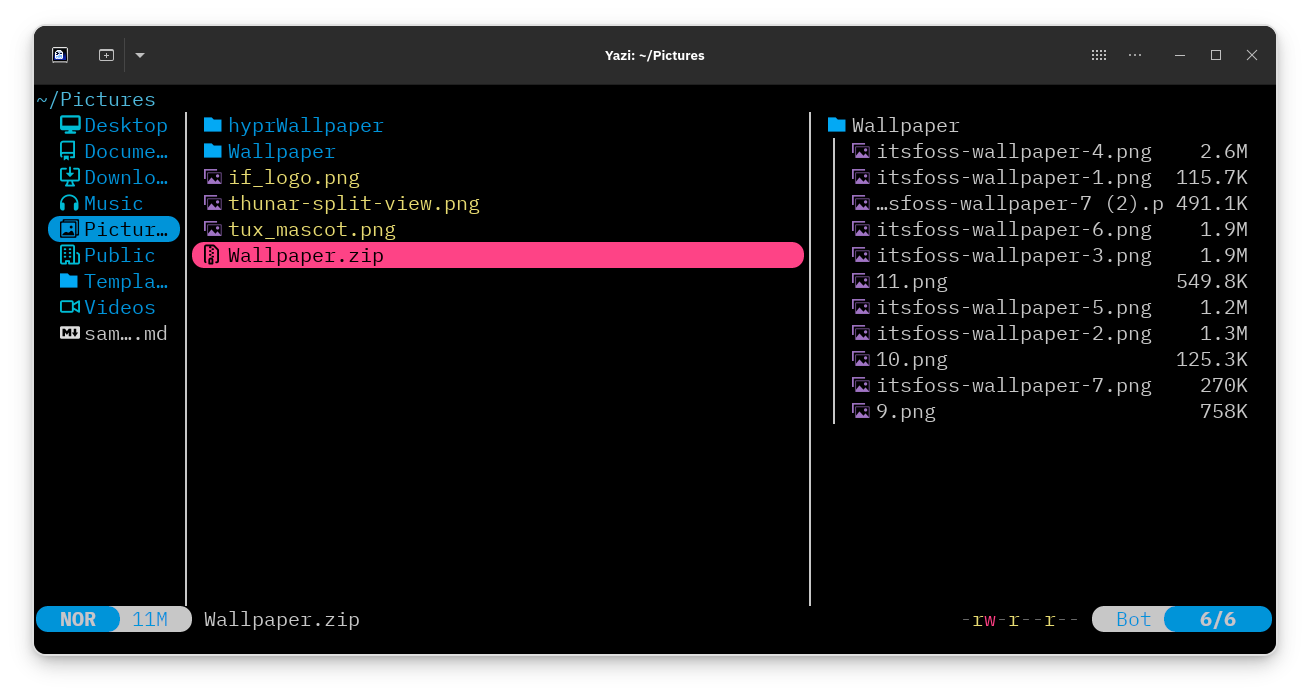 Archive Preview
Previewing a text file? Press J (Shift + j) to scroll down. Press K (Shift + k) to scroll up.
0:00 /0:19 1×A small clip showing file preview scroll in Yazi file manager.
Switch to directories by searching for it
Changing directories in Yazi becomes fast once you know the right key combination.
Press g followed by space. A small launcher will appear. Enter an absolute or relative path; your choice.
As you type, Yazi suggests matching directories.
0:00 /0:29 1×A small clip showing entering into directories in Yazi file manager.
Powerful file search
Yazi supports two search methods; one using fd and another using ripgrep.
Press s to search files by name. This uses fd, a modern alternative to the traditional find command.
0:00 /0:23 1×A small clip showing the working of fd search.
To search by file content, press S. This uses ripgrep, a modern replacement for grep command.
You can cancel a search anytime with Ctrl+s.
0:00 /0:18 1×A small clip showing the working of ripgrep search in Yazi file manager.
Bulk rename files with a breeze
Renaming multiple files doesn’t get easier than this.
First, select files using the Space key. A selected file stays selected even if you change directories. You can select files from anywhere in your system.
Once done, press r. Yazi will open all selected filenames in your default terminal text editor $EDITOR.
Edit the names as needed. Just be careful not to alter directory paths if you selected files across different folders.
When you’re done, save and exit. In Vim, that’s :wq.
That’s it. All selected files are renamed instantly.
A small clip showing renaming files in Yazi file manager.
The fuzzy search and zoxide
Yazi includes a fuzzy search mode powered by fzf.
In a directory with many files and can’t remember the exact name? Press z. Start typing something close to the filename and Yazi will narrow it down.
A small clip showing the working of fzf search in Yazi file manager.
If you use zoxide instead of the traditional cd command, you’ll like this even more. Press Z to jump to directories tracked by zoxide. Just make sure zoxide is properly set up first.
A multi tabbed interface
Yazi supports tabs. Press t to open a new tab.
Each tab gets a number. Switch between them using the associated number keys.
A small clip showing creating and switching tabs.
To close a tab, press Ctrl+C.
It has more to offer
These are just some of the features I found most useful. Since Yazi is a file manager, it naturally supports standard operations like copy, paste, and path handling.
It also includes a visual mode for file selection and an interactive file open menu similar to an “Open With” context menu.
Feeling lost among keybindings? Press F1 for a full in-app help view. Once you find what you need, press ESC to return.o
Do you find it useful?
I’ve been slowly building a full TUI workflow; Helix as my editor, Glow to preview Markdown, and now Yazi fills the last missing piece as my file manager.
I don’t expect to move away from a GUI setup this much, but Yazi makes that thought achievable. It fits naturally into the way I work.
If you like exploring TUI tools, give it a try and see if this is something you would like to use on a regular basis. Do share your experience in the comments.




Comments (0)
No comments yet. Be the first to comment!